

Are you a Mac user yearning to dive deep into the enchanting realms of Eorzea? Fear not. Final Fantasy XIV on Mac is your golden ticket. With its vivid landscapes and intricate narratives, it’s like embarking on a rollercoaster ride with an epic soundtrack. But hang on, can your Mac handle it? This comprehensive guide will break down system requirements, installation steps, and performance optimizations while keeping your gaming spirit high and your laughter rolling. So, grab your favorite controller and get ready to smash those quests.
System Requirements for Mac
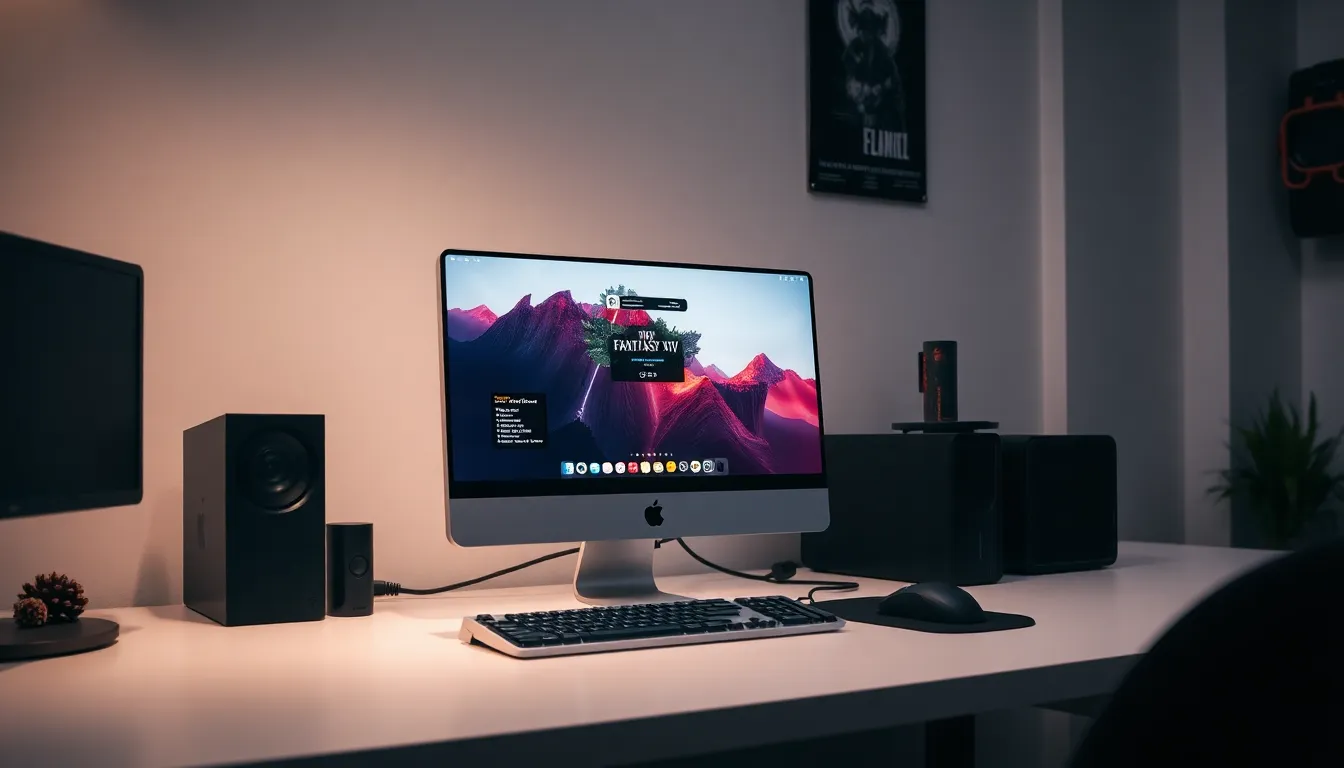
Before unleashing your inner warrior, it’s crucial to check if your Mac is fit for battle. Here’s what you’ll need:
Minimum System Requirements
- OS: macOS 10.14 Mojave or higher
- Processor: Intel Core i5 or better
- Memory: 4 GB RAM
- Graphics: NVIDIA GeForce GTX 750, AMD Radeon R7 260, or Intel UHD Graphics 630
- Storage: 60 GB available space
- Internet: Broadband connection required for online play
Recommended System Requirements
To truly bask in the glorious graphics, aim for these specs:
- OS: macOS 10.14 Mojave or newer
- Processor: Intel Core i7 or higher
- Memory: 8 GB RAM or more
- Graphics: NVIDIA GeForce GTX 960, AMD Radeon R9 280, or equivalent
- Storage: 60 GB SSD for optimal performance
Having the right setup ensures smoother frame rates and more epic battles. If your Mac checks these boxes, you’re ready to install.
Installing Final Fantasy XIV on Mac
Installation is the gateway to your adventure. Here’s how to embark on this journey:
Step-by-Step Installation Guide
- Purchase from the Official Site: Head to the Final Fantasy XIV official website. Choose the Mac version during your checkout.
- Download the Client: After purchasing, download the game client. Make sure you’ve got a stable internet connection, no one wants to deal with interruptions right before a raid.
- Open the Installer: Once downloaded, locate the installer in your downloads folder and double-click it. This should trigger the installation process.
- Follow On-Screen Instructions: The installer will guide you through the steps. It’s as easy as pie.
- Launch the Game: After the installation is complete, navigate to your Applications folder, find Final Fantasy XIV, and launch it.
- Create a Square Enix Account: If you don’t already have one, sign up for a Square Enix account. This is necessary for online gaming.
- Enjoy. Sign in and get ready to immerse yourself in Eorzea.
And voilà. You’re now equipped to explore dungeons, engage in PVP, and savor every moment of your gaming experience.
Optimizing Performance on Mac
Once you’re in the thick of your adventures, you may want to optimize your game’s performance. Here are some tips:
Performance Optimization Tips
- Adjust In-Game Settings: Start by lowering the graphics settings under the System menu. Options like shadows, anti-aliasing, and ground textures can be adjusted.
- Close Background Applications: Make sure to close unnecessary applications that may be hogging your memory. Every little bit counts in gaming.
- Update macOS and Drivers: Keeping your operating system and graphics drivers updated is like giving your Mac a performance booster shot.
- Use an SSD: If your Mac supports it, install Final Fantasy XIV on a Solid-State Drive. SSDs are significantly faster than traditional HDDs, reducing load times.
- Monitor Temperature: Overheating can throttle your performance. Use apps like iStat Menus to keep an eye on your temperatures and fan speeds. If it’s running hot, consider a cooling pad.
By following these suggestions, players can enjoy a smoother gaming experience without those pesky slowdowns.
Common Issues and Troubleshooting
Even the best-laid plans can hit bumps in the road. Here’s a list of common issues players may encounter on Mac and how to resolve them:
Troubleshooting Common Problems
- Launcher Fails to Start: If the launcher doesn’t open, ensure it’s not being blocked by your firewall or antivirus software. Check your security settings and add exceptions if necessary.
- Game Crashing: Constant crashes can be annoying. Try verifying the game files to ensure no corrupt data exists. On the launcher, navigate to “Settings” > “Check Files.”
- Slow Frame Rates: If the game is lagging, lower the graphic settings as discussed earlier. Turning off V-Sync can also improve frame rates.
- Connection Issues: If your connection seems unstable, try resetting your router or switching from Wi-Fi to a wired connection for a more stable experience.
For any other issues, no need to panic, Square Enix has a robust support center that’s ready to help.